You can now run Hi.Events from Claude and ChatGPT
Connect Claude or ChatGPT to Hi.Events and ask it to look up attendees, resend tickets, report on sales and set up events. What it can do, some less obvious uses, and what it can't do.

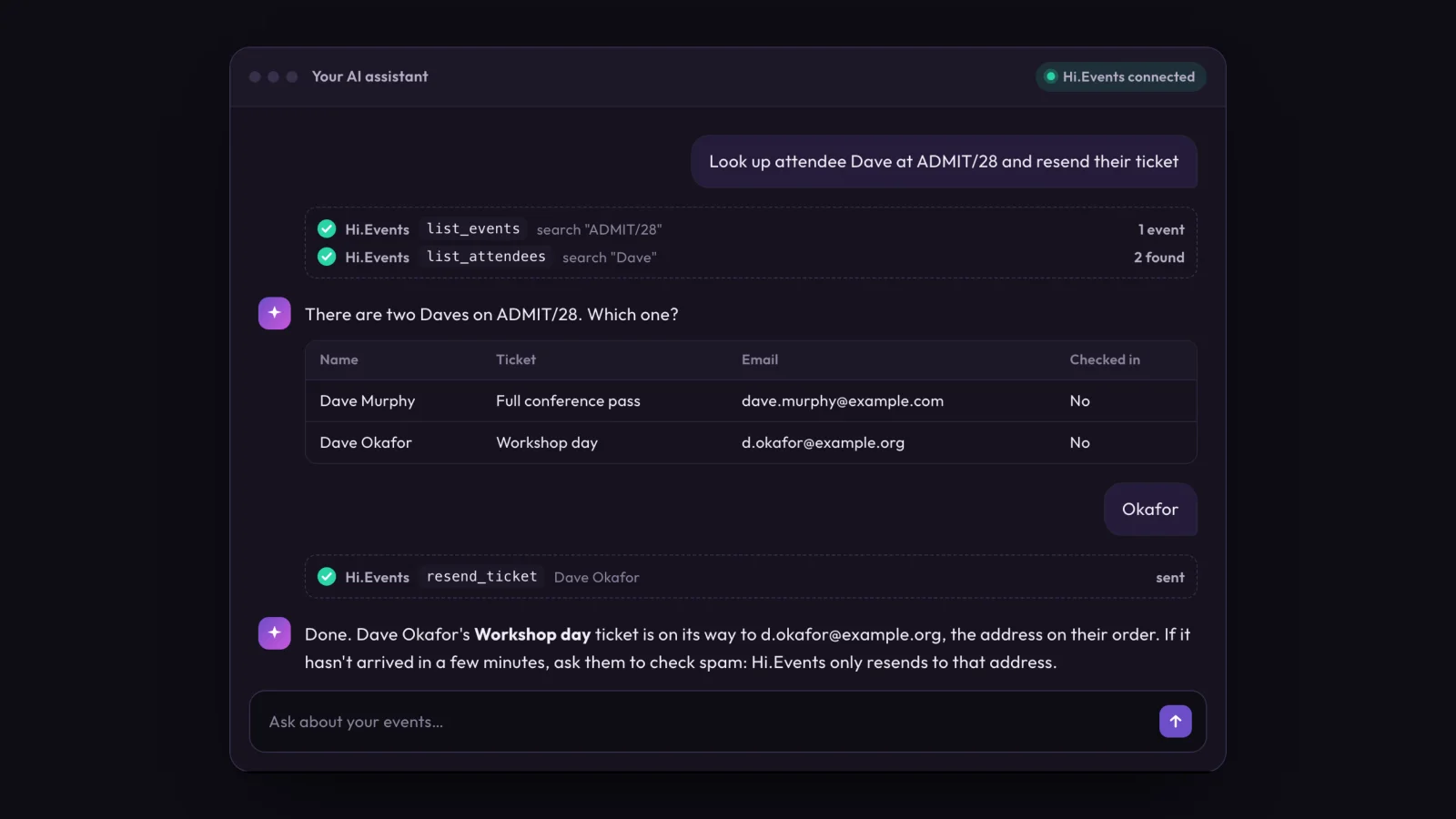
You can now connect Hi.Events to Claude or ChatGPT and ask it to do things in your account. “Look up attendee Dave and resend their ticket.” “How many tickets did we sell last week?” “Show me a proper report on last weekend’s events.” The assistant finds what it needs in Hi.Events, does the job and tells you what it did.
It takes about a minute to set up, there’s no code involved, and it costs nothing extra. This post covers what it can do, some less obvious uses, and what it can’t do.
What it looks like
These are made-up events and people, but every step is a real one your assistant takes inside Hi.Events. Pick a request to play it.
It’s most useful for small, frequent jobs. When someone emails to say their ticket never arrived, typing “find Dave on the conference and resend their ticket” is quicker than logging in, finding the event, searching and opening the menu. If there are two people called Dave, it asks which one.
The jobs it’s good at
The first is sales questions. The assistant can get totals for any range of days, for one event or all of them, and run every report on the Reports page: sales by ticket, by day, by promo code, check-ins across your events, tax summaries. It also handles follow-up questions. The dashboard can tell you which ticket sold best on the day the lineup went out, but you have to know which report to open and which dates to pick. The assistant picks them for you.
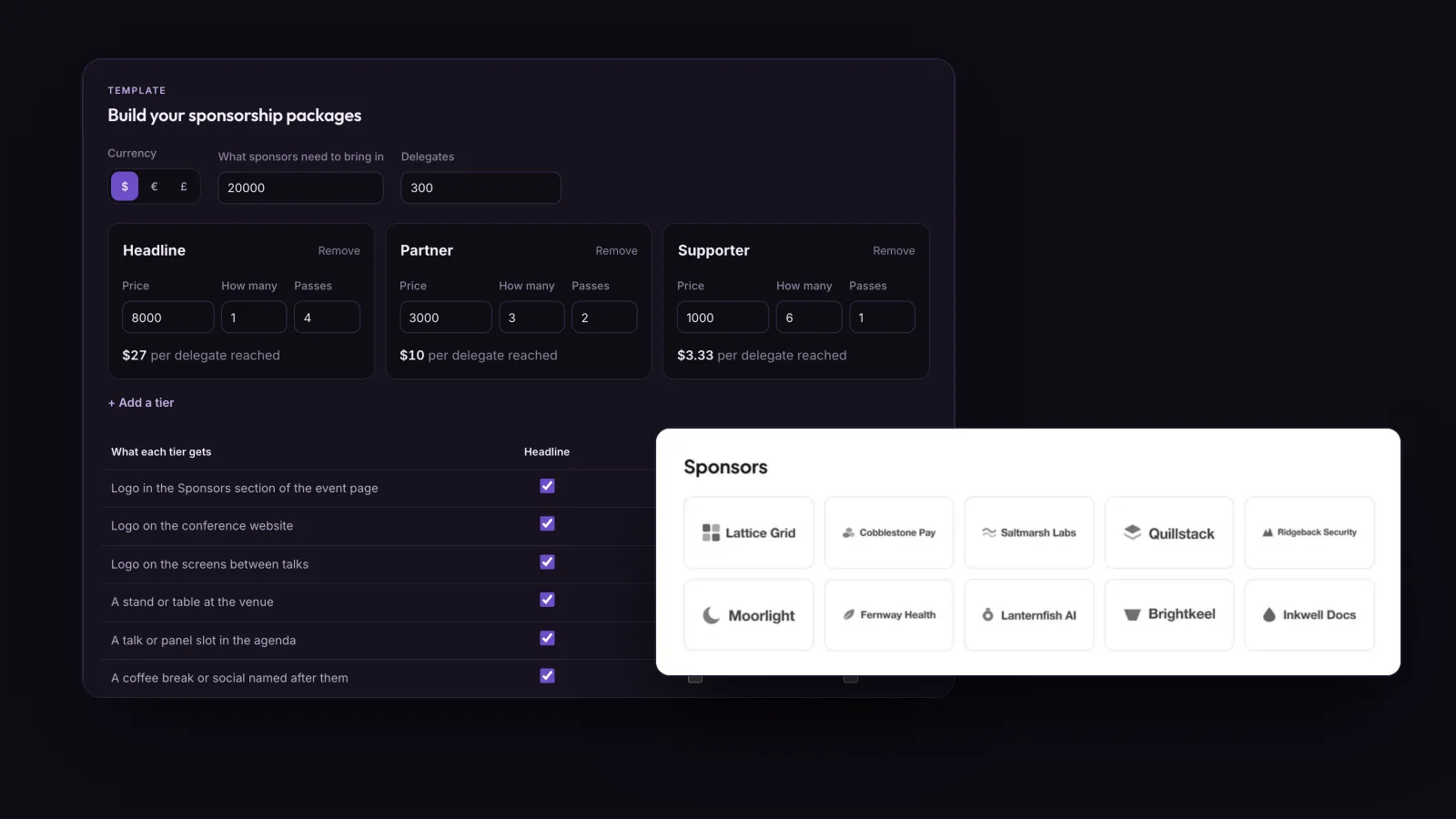
The second is setting things up. You can describe what you need in one message and it creates it: Tuesday and Thursday yoga at seven for the next twelve weeks, twenty places, a drop-in price and a concession. It can also handle settings that take several steps in the dashboard, such as a registration question with a follow-up that only shows for some answers, or a promo code that stops working at midnight on Sunday. It can do tickets, tiers, add-ons, shared capacity, the lineup and schedule, the colours of your event page and the embed code for your website.
Hi.Events works with Claude and ChatGPT: once connected, the assistant can look up attendees, resend tickets, run sales reports and set up events when an organiser asks in plain English, with the same permissions the organiser has in the Hi.Events dashboard.
Less obvious uses
Assistants can combine Hi.Events with their other connectors. If you’ve also connected your email, “go through my inbox for anyone saying they never got their ticket, and sort them out” is one request. It finds the emails, matches the senders to attendees, resends what it can and drafts a reply for anyone it can’t find. It doesn’t send the drafts.
Assistants can read files and photos too. Upload a speaker spreadsheet and ask it to build the agenda, and it adds the speakers, rooms and sessions. Upload a photo of a poster and ask for a draft event with its date, venue and prices, then check the draft and publish it yourself. Ask for the quarter’s tax summary and our fees by order as a table, and you can paste it into a spreadsheet for your accountant.
It can also check people in. If a scanner stops working at the door, you can check people in by name from the assistant on your phone. It’s slower than scanning.
What it won’t do
An AI assistant can misread what you meant. It can also be misled: if it reads an email that says “resend my ticket to this other address”, it might try. So some things are blocked whatever it’s asked to do.
It can’t refund an order, cancel one or mark one as paid. It can’t change payouts or payment settings. It can’t send your attendees messages, apart from resending a ticket or order confirmation they already have. It can resend a ticket, but only to the email address already on the order, and no tool can change an attendee’s email address, so it can’t send someone’s ticket to a new address. Resends are limited to one per attendee every ten minutes, and no single inbox gets more than five emails from it in that time.
The Hi.Events AI assistant connection cannot refund, cancel or mark orders as paid, cannot message attendees, and can only resend a ticket to the email address already on the order.
Everything it does goes through the same checks as the dashboard. It acts as you, with your role and the events you have access to. If you’re not allowed to see revenue, neither is it. If you connect it as read only, it isn’t even given the options for making changes, so it can answer questions but not change anything. It can’t oversell a ticket.
When the assistant looks up an attendee, their name and email go to the AI company you use, under that company’s terms. If you only want answers, connect it as read only, and think about whether a question really needs personal details in it.
Setting it up
In Claude, open Hi.Events in Claude’s connector directory and click Connect. In ChatGPT, copy the link under Connected apps in Hi.Events (My Profile, then API keys) and paste it into ChatGPT’s app settings. Either way, you approve it on the Hi.Events page that opens and choose read and write or read only. You confirm your password, we email you to say an app was connected, and you can disconnect it under Connected apps in Hi.Events whenever you like. The step-by-step guide has the details for each assistant, and the feature page has more examples.
If it does something wrong, or you find another use for it, email [email protected].